
What you will accomplish
Prepare a clean contact list, import it into the active workspace, review validation errors, and build usable audiences for WhatsApp campaigns.
Before you begin
- Collect consent according to your business process and applicable WhatsApp policy.
- Use one row per customer.
- Include country code in phone numbers.
- Keep test imports small before uploading a full list.
CSV fields
| Field | Required | Notes |
|---|---|---|
| name | Recommended | Use the customer or lead name visible to agents. |
| phone/mobile | Yes for WhatsApp use | Use country code and avoid formatting surprises. |
| Optional in UI, required for public API contact creation | Use a real business email only when available. | |
| tags | Optional | Use consistent labels such as lead-source, city, or product interest. |
| source | Optional | Track where the lead came from. |
Step 1 - Open Contacts
Confirm the correct workspace is selected, then open Contacts. Existing contacts belong only to the active workspace.
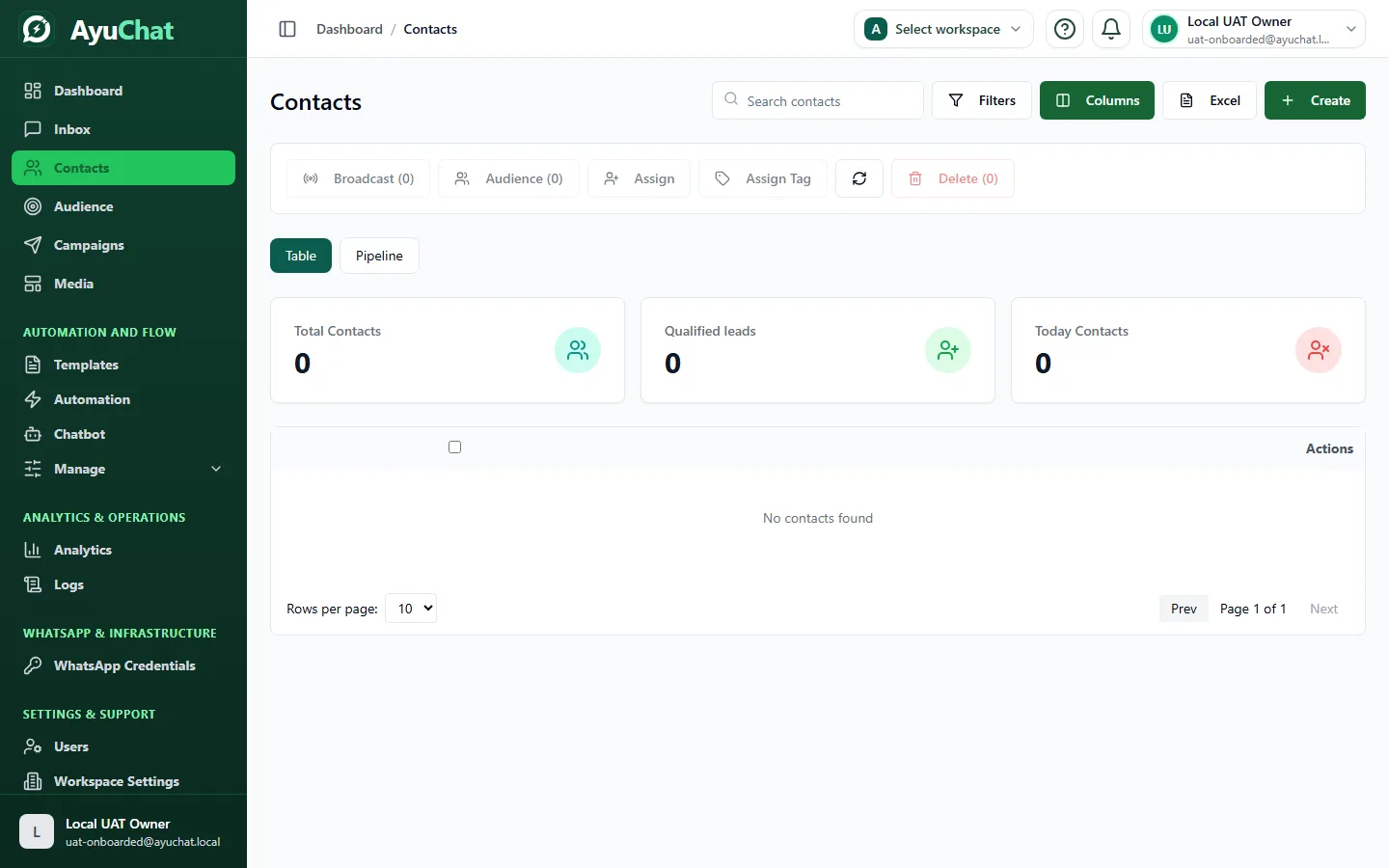
Step 2 - Import or create contacts
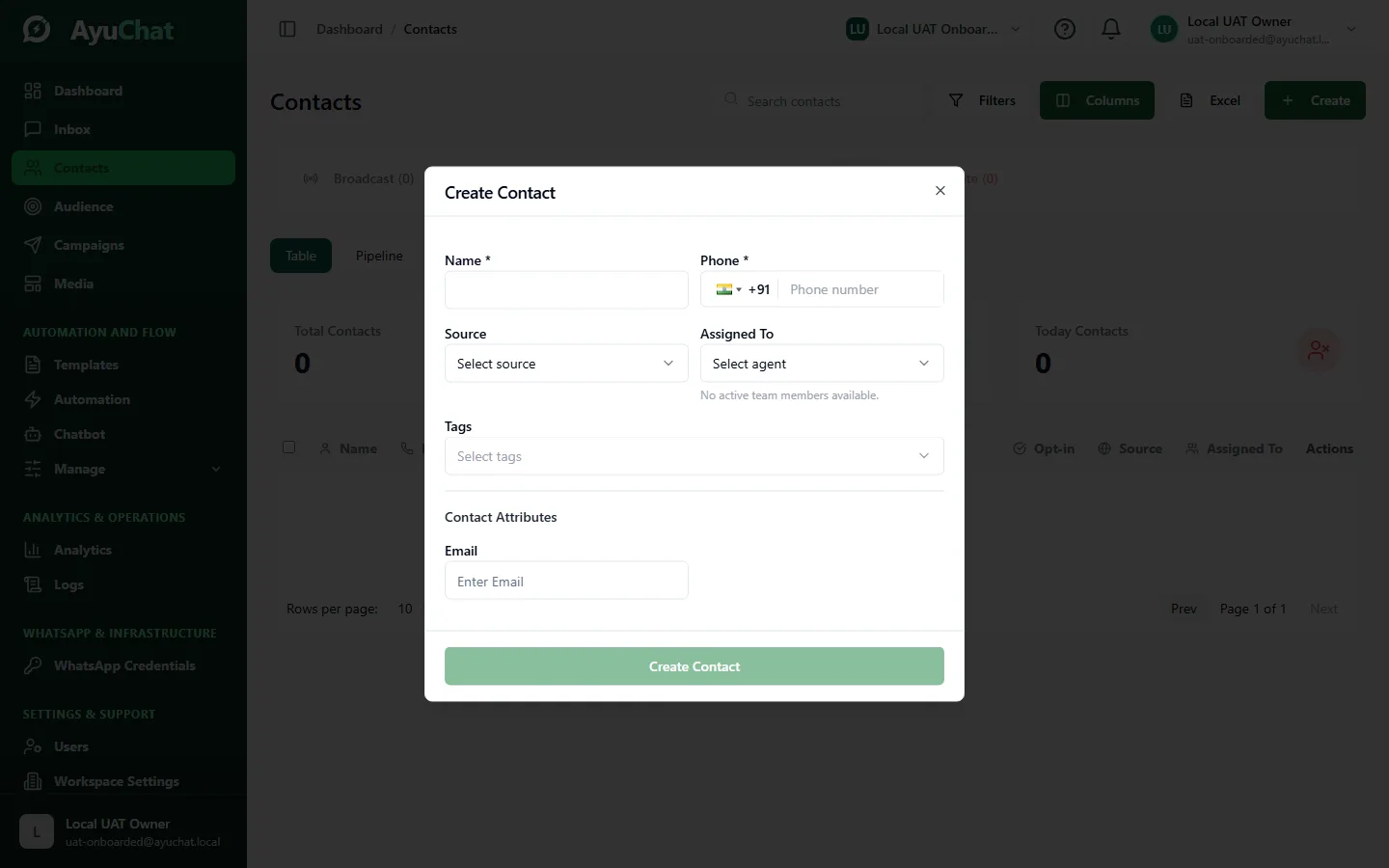
- Choose the import action or create a contact manually.
- Upload the CSV.
- Map columns to AyuChat fields.
- Review validation and duplicate warnings.
- Confirm only after the preview looks correct.
Step 3 - Tag and segment
Use tags for durable labels and audiences for campaign-ready groups. Avoid creating many nearly-identical tags, because that makes campaign targeting harder to review.
Verify the result
- Contact count increased in the active workspace.
- Imported names and phone numbers display correctly.
- Audience membership matches your expected segment.
- Opted-out or invalid contacts are excluded from sends where the product enforces that rule.
Common problems
| Problem | Resolution |
|---|---|
| Invalid phone number | Normalize the number with country code and digits only where possible. |
| Duplicate contacts | Merge or update the existing record instead of creating another recipient. |
| Wrong audience | Review tags and filters before launching the campaign. |
| API contact creation fails | Check API key scope and required name, phone, and email fields. |