
What you will accomplish
Use this guide to understand where the main AyuChat work happens after you sign in. It is written for the current customer SaaS navigation: Dashboard, Inbox, Contacts, Audience, Campaigns, Media, Templates, Automation, Chatbot, Analytics, Logs, WhatsApp credentials, Users, Workspace Settings, Integrations, Developer Hub, Billing and Help.
Before you begin
- Sign in to AyuChat with a workspace user account.
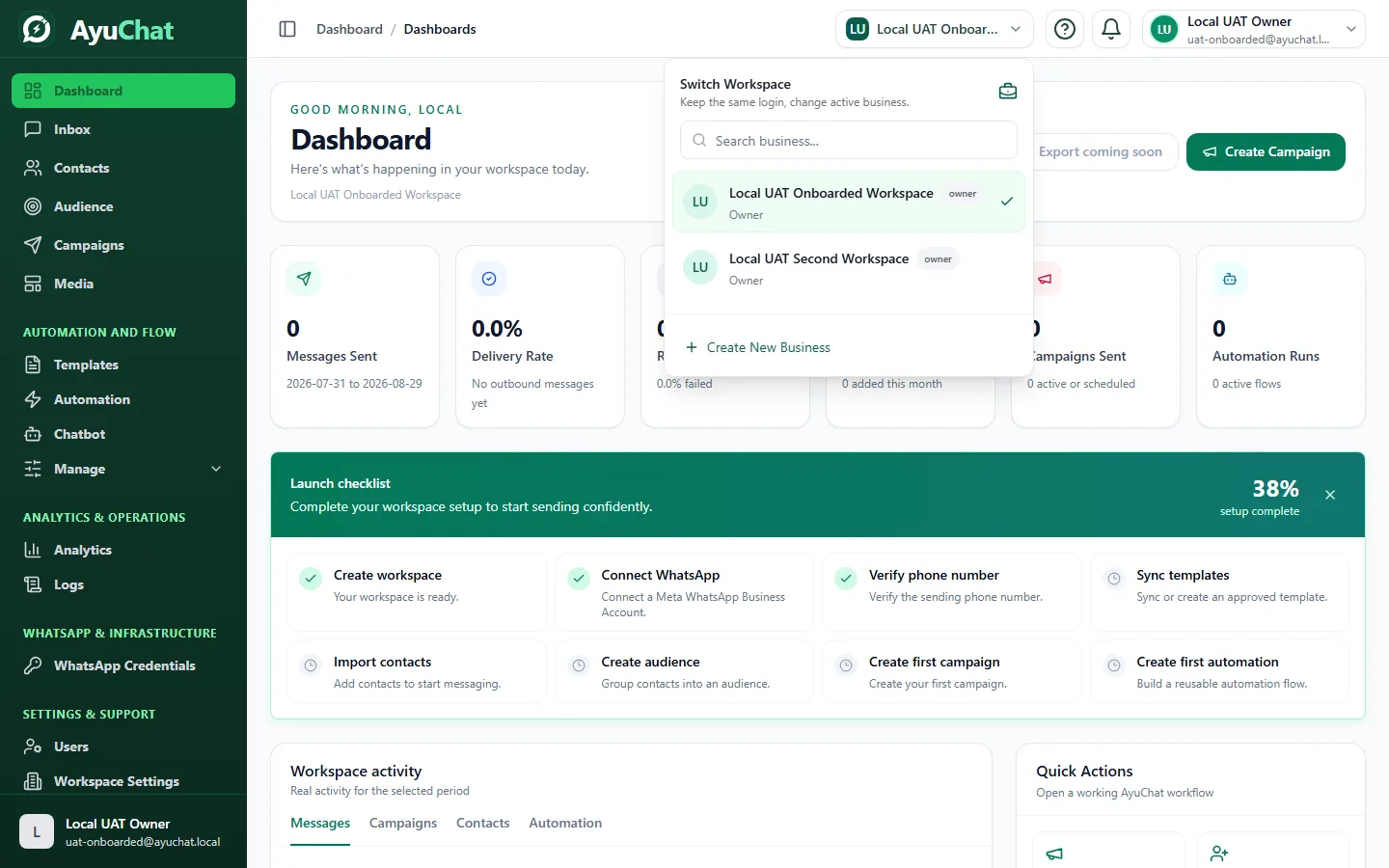
- Confirm the correct workspace is selected in the header switcher.
- Use an owner or admin role when changing workspace, billing, WhatsApp, integration, API key, or webhook settings.
Main navigation map
| Area | Use it for | Typical user |
|---|---|---|
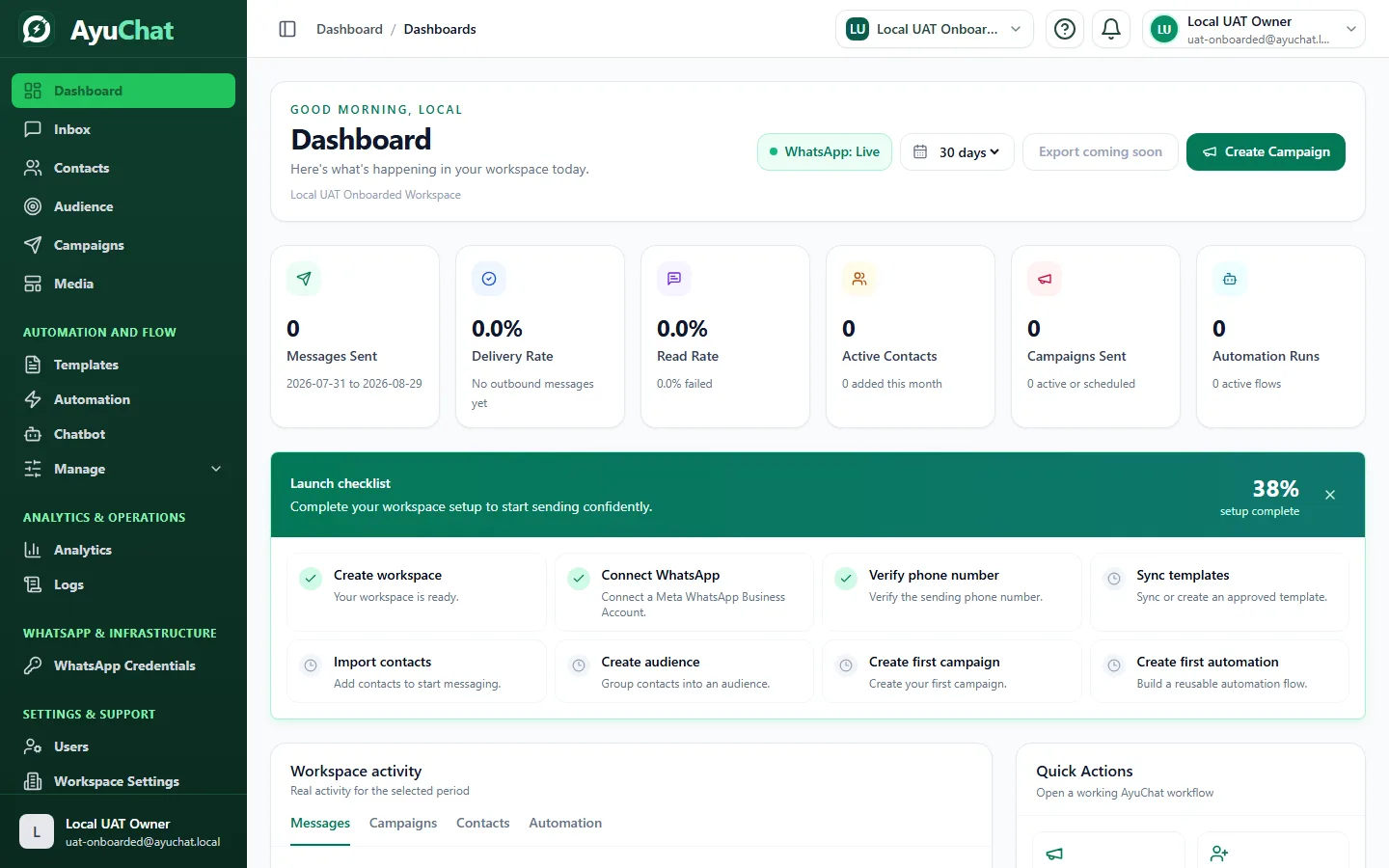
| Dashboard | Workspace health, WhatsApp status, launch checklist, and common next actions. | Owner, marketer |
| Inbox | One-to-one conversations, replies, approved template sends, and support handoff. | Support agent |
| Contacts and Audience | Customer records, tags, segmentation, import review, and campaign targeting. | Marketing user |
| Campaigns | Approved-template broadcasts, scheduling, and delivery analytics. | Marketing user |
| Automation and Chatbot | Rules, triggers, actions, flows, and run monitoring. | Marketing user, developer |
| Developer Hub | Project API keys, campaign keys, outbound webhooks, and integration docs. | Developer |
| Billing and Usage | Current plan, subscription state, invoices, payments, and recovery actions. | Owner |
Step 1 - Confirm your active workspace
The header workspace switcher controls which business data you are viewing. Before importing contacts, creating a campaign, changing billing, or generating an API key, verify the selected workspace name.
Step 2 - Read workspace readiness
The dashboard surfaces the fastest path to launch: WhatsApp connection state, key metrics, launch checklist progress, and quick actions. When WhatsApp is not connected, message data may not sync and sending tools should be treated as setup-only.
Step 3 - Use Help and Support
The Help and Support area combines public documentation with private support tickets. Public documentation never contains your API keys, Meta tokens, payment credentials, or private conversations.
Common problems
| Problem | Likely cause | Resolution |
|---|---|---|
| Expected data is not visible | Wrong workspace selected | Switch to the intended workspace and refresh. |
| A button is unavailable | Role permission or plan entitlement | Ask an owner/admin to review role and plan access. |
| WhatsApp widgets show setup prompts | WhatsApp is not connected or needs attention | Open WhatsApp Credentials and complete the connection checks. |
Next step
Create or verify your workspace profile, then connect WhatsApp before importing real contacts or launching campaigns.